Tally Gurukul Services
- Tally Sales
- Tally Customisation
- Tally Implementation
- Tally Consultation
- Tally Support
- Tally AMC
- Tally Manpower Supply
- Tally Training
- Customised Tally Voucher Printing
- Customised Tally screens
- Voucher Type Security module in Tally
- Group Ledger Security module in Tally
- Automatic Bank Reconciliation module in Tally
- Integration of Tally with third-party software, like Excel or any ERP.
- Upload Distributor's PriceList to Tally
- Auditing Tools for Tally
- Barcode Printing in Tally
Installation of Tally Extension file
- Open Tally.ERP 9 and Load the Company.
- Load the Integration.tcp to Tally ( One time only)
- Process to install TCP file
I. Gateway of Tally à F12 Configurations
à TDL Configurations
à Press F4 or Click on Local TDLs Button from the
current Screen
II. Specify the TCP path
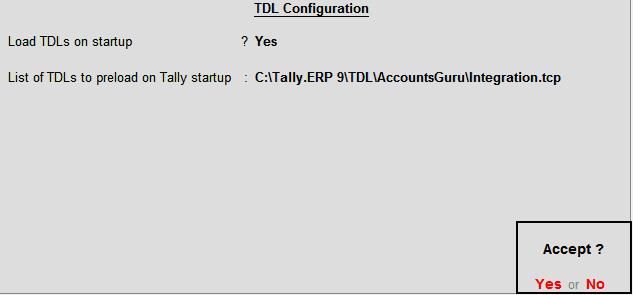
4. On successful installation, below will be shown after
accepting the above

Setting up Transaction Types (one time)
1. After successful installation of Tally Extension file,
do the below process to automate the default integration setup
2. Select Gateway of Tally à
F11 Features à AccountsGuru Setup
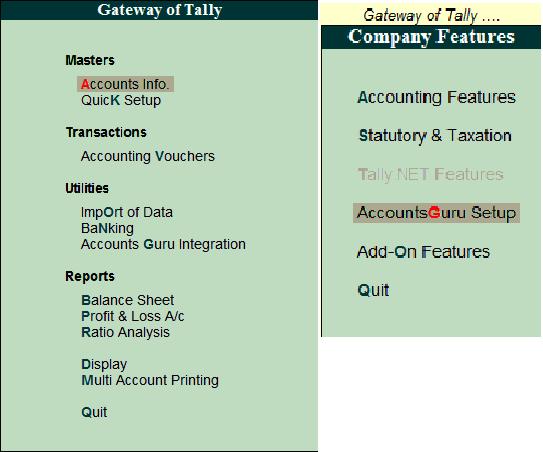
3. Click on AccountsGuru Setup and below screen will be
displayed after successful setup

Process to import the Data
Master Data Import
1. Download the Master Data from AccountsGuru website and
save into local folder
2. Select Gateway of Tally àAccountsGuru
Integration à Masters

3. Select Masters
4. Now, Specify the below details.
i) Import File Name(XLS) : Path of the Master Data file
which is saved from Accounts Guru website
ii) Import Sheet Name : Sheet name of the Master Data excel where data is presented
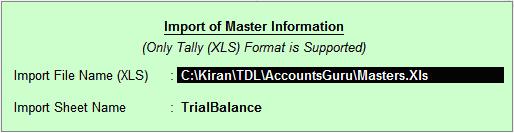
5. After Accepting
the above screen, on successful import of new master data, below screen
will be displayed

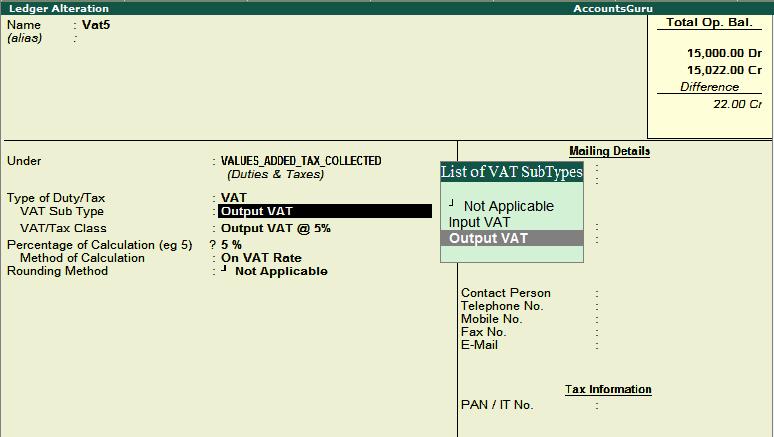
If the version is not compatible with current installed TCP, below message will be displayed.
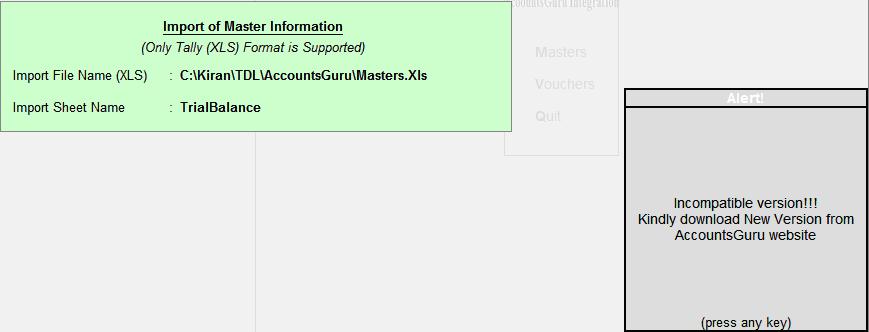
Ex:
Transaction Data Import
1. Download the Transaction Data from AccountsGuru
website and save into local folder
2. Select Gateway of Tally àAccountsGuru
Integration à Vouchers
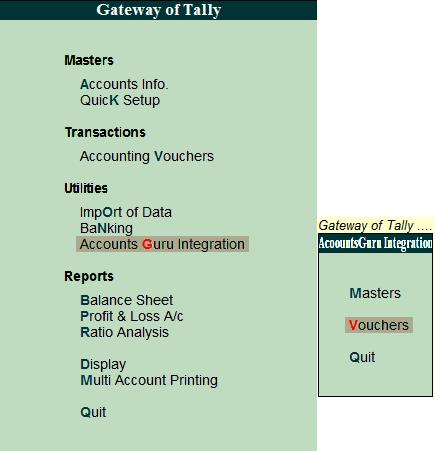
3. Select Vouchers
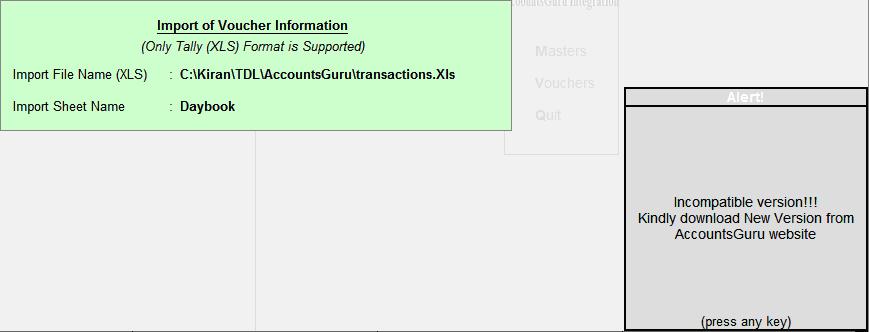
4. Now, Specify the below details.
i) Import File Name(XLS) : Path of the Transaction Data
file which is saved from Accounts Guru website
ii) Import Sheet Name : Sheet name of the Transaction Data excel
where data is presented
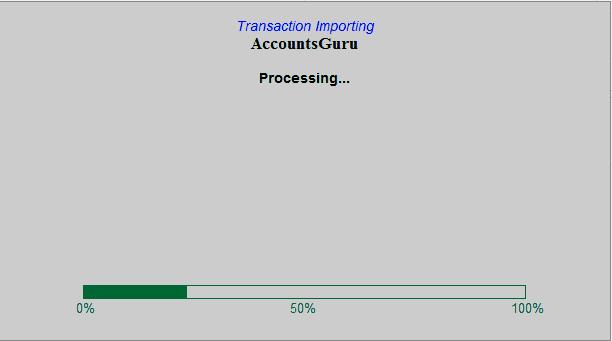
5. After Accepting the above screen, on successful checking
Version, below screen will be displayed
If the version is not compatible
with current installed TCP, below message will be displayed.
6. If any error occurs during the Transaction, everything
will be recorded in TallyFunc.Log file, located in Tally.ERP 9 installed folder
and
you can see in the calculator panel of Tally.ERP 9
application also

7. Daybook report after data import
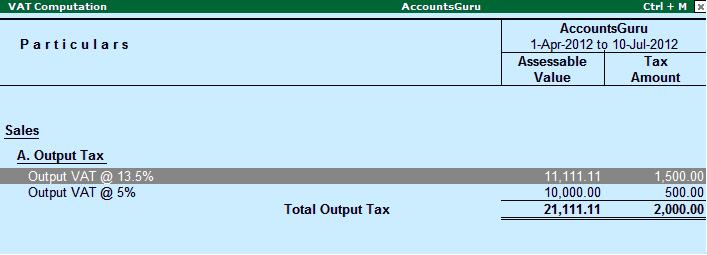
 8. VAT Computation Report
End

No comments:
Post a Comment